This site uses cookies for essential analytics. You can accept or reject cookies
This site uses cookies for essential analytics. You can accept or reject cookies

PDF stands for Portable Document Format and was invented by Adobe in the 1990s so we could share digital documents that look exactly the same on any computer, phone or printer.
This fixed the problem of text and pictures moving around or changing fonts when opened on a different device. No one wants their formatted heading jumping to the end of the page, or a signature line ending up nowhere near the printed name.
They are safe and private as they can be locked with passwords, consistent in their design and the printed result should be exactly as you see onscreen.
However, assistive technologies like screen readers, may struggle reading PDFs as they are often tagged incorrectly. This is why they need separate accessibility checks.
Unlike a Microsoft Word processed document where the elements can move, PDFs were designed to mimic printed paper, freezing pixels in their exact physical locations. Therefore, the design is not separated from the content and accessibility must instead be manually built into an invisible background layer called the Tag Tree.
If you want to understand the benefits of making your content more accessible, read my blog post, Why does accessibility really matter?
Bonus Tip: Although Microsoft Word is by far the most popular tool used to generate PDFs, you can also use the rest of Microsoft Office Suite, Adobe InDesign, Canva, Affinity Adobe Publisher, Google Docs (my personal favourite).
For more technical tools, try LibreOffice Writer, Nitro PDF, PDF24 Creator, LaTeX, HTML/CSS Converters like Puppeteer and WeasyPrint, ReportLab (Python) / PDFKit can also be used to make PDFs.
When making your PDF accessible, it is important to understand the two key international accessibility standards.
A set of international technical standards created by the World Wide Web Consortium (W3C). These rules explain how to make digital content usable for people with disabilities. This standard is for design across the internet, not just PDFs, focusing on user experience.
This is the more technical standard specifically designed for PDFs. It dictates how the technical aspects such as file structures, tag trees, and annotations must be built for universal accessibility. It sets minimum requirements that make sure documents are compliant with devices that support people with disabilities such as braille embossers and screen readers.
It is important that you aim to comply with both of these standards. PDF/UA ensures your file is structurally sound, while WCAG ensures the content is readable and user friendly. Even people without a disability will feel the difference between an interactive, fully navigable PDF, like an e-book with a clickable table of contents, and a flat, locked image file you can only stare at.
Imagine you are going away on holiday to Jamaica . When travelling on holiday, some things are essential for the journey, such as your passport and tickets. You may still reach your destination without packing everything you need, but the wrong clothes, missing essentials, or forgotten equipment can make your trip uncomfortable and less enjoyable.
Follow this list to avoid cumbersome and difficult to navigate PDFs, just as you would avoid packing a winter coat for a hot destination.
If a PDF is created by scanning a physical page, screen readers will not be able to read the text as they will see it as an image. Even sighted users will not be able to search, highlight, or copy any text.
To keep text fully readable and searchable, avoid creating PDFs from scanned images wherever possible. If scanning is unavoidable, try to use Optical Character Recognition (OCR) software to convert the image back into text.
Ensure the software that creates the PDF exports real text and structural tags rather than converting the document into an image.
If creating the document in software like Microsoft Word, Google Docs, or Adobe InDesign, save it like this: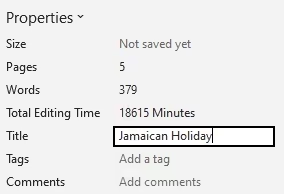
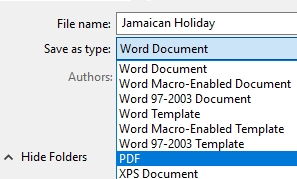
Bonus Tip: Never select Print to PDF as this can strip out accessibility metadata.
PDF tags are used to enhance the structure and navigation of a document, making it easier for assistive technologies to navigate and for users to move through the content. They create the document's underlying structure, including its logical heading hierarchy, and define the order in which content should be read. Without tags, a screen reader might read across two columns in a newspaper layout instead of down each column, making the information difficult or impossible to follow when read aloud.
Not all software is created equal when it comes to structural tags. To make sure your tags are working correctly, you can add, check or fix the structure in Adobe Acrobat using 3 different methods.
If you want a little extra help, this video demonstrates how to tag your PDF in Adobe.
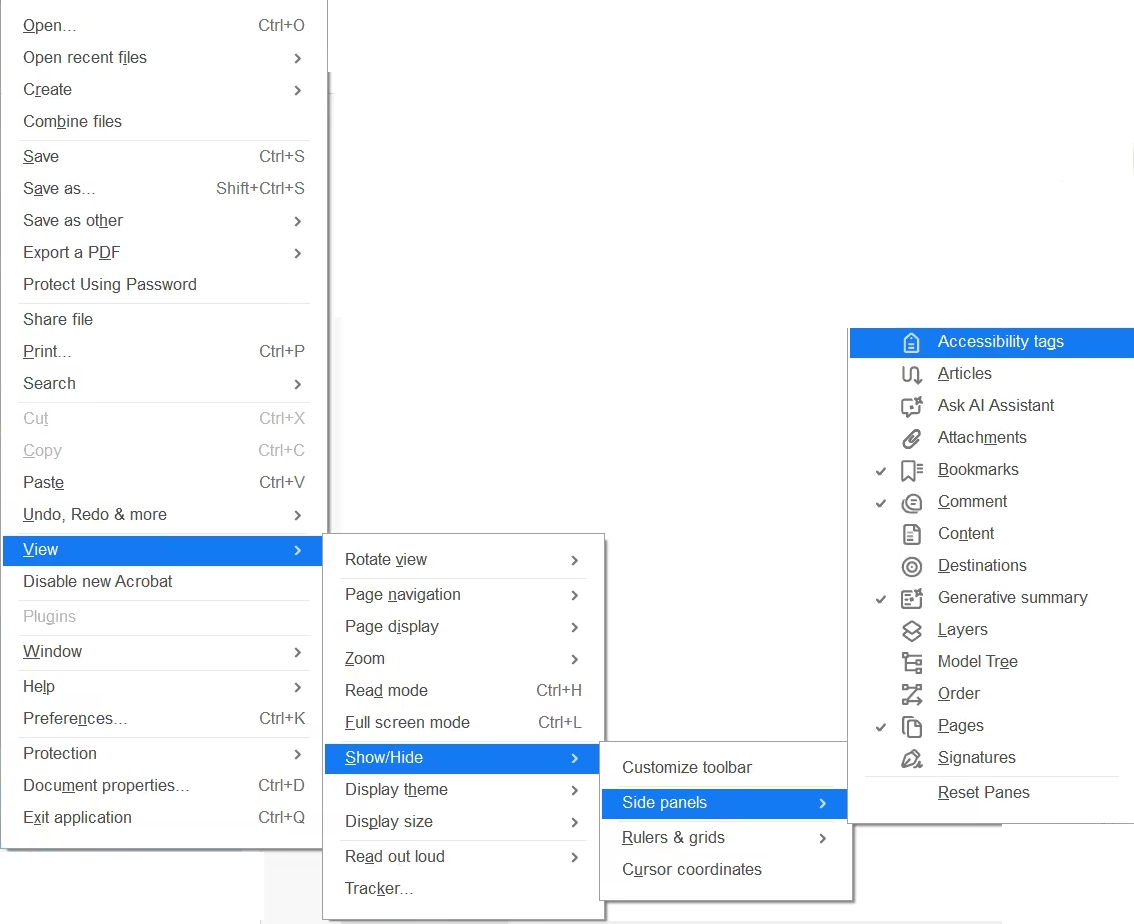
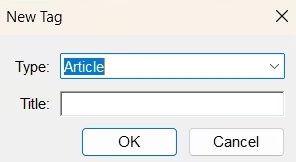
The Tags Panel displays the document's hidden structural tree. To open it and create a tag:
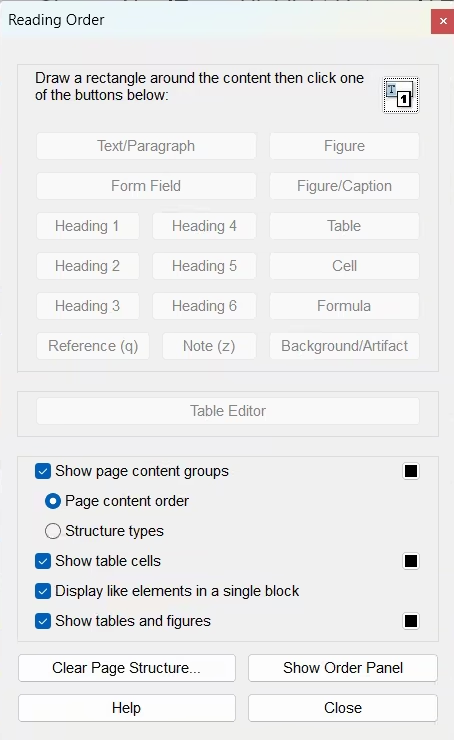
The Reading Order tool lets you select areas of the page and assign the correct structure and reading order. To open it to adjust the reading order:
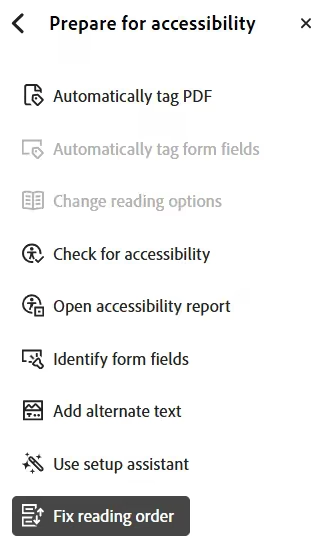
For completely untagged files, the Autotag tool can be really helpful to generate a layout using Adobe's built in layout recognition software. To do this: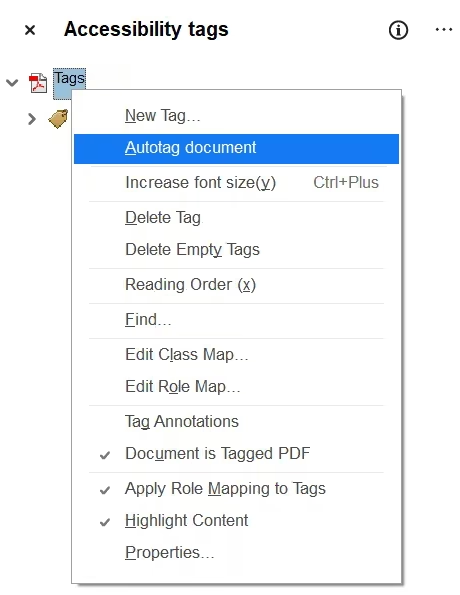
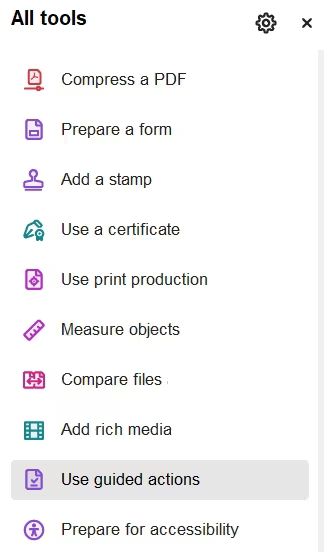
Bonus Tip: To become better informed on your specific PDF's accessibility, you can try the Guided Action wizard which will walk you through every step to help you Tag your PDF.
Screen readers use language tags to apply correct phonetics. If the language is not set, an English screen reader might attempt to read a French phrase using English pronunciation rules. That would be super confusing, non?
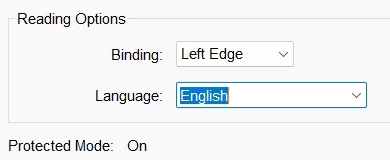
Bonus Tip: If you are feeling super smart, for short foreign language phrases, you can highlight that specific text in Acrobat's Tags panel and assign a secondary language tag.
Alternative (Alt) Text is a written description of an image to ensure that its meaning, essence and purpose is conveyed when you cannot view it. When encountering an informative image without Alt Text, a screen reader may skip it or provide unhelpful information instead, which is why adding alternative text is a non negotiable for accessibility in everything, not just PDFs.
If an image adds meaning to your content, give it useful Alt Text. If it is purely decorative, mark it as an Artifact so assistive technologies skip it.
Add Alt Text for images that contain important information or need to be described. If the image is purely decorative, select the Decorative figure checkbox instead.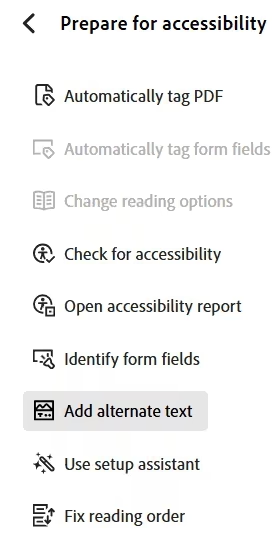
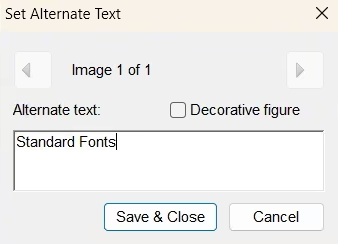
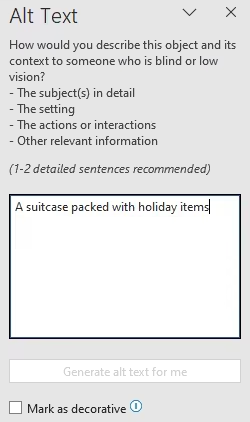
Bonus Tip: If an image is purely decorative, such as a background swirl or page divider, Mark as decorative so assistive technologies skip it.
When creating documents like PDFs, many people do not think about colour in the context of accessibility but gradients that are too similar, like light grey text on a white background, or tiny fonts, may make documents difficult to read for low vision users, not to mention annoying to look at for sighted users. The aim is to create a beautiful document while not excluding any users.
It is so important to build a form that actually works. You may think this is obvious, but it is incredibly common to encounter inaccessible forms that you are physically unable to fill out.
Forms that are not interactive are frustrating for everyone. If a user has to print the form, fill it out by hand and then scan it back in, the form has already failed. If that experience is difficult for users without disabilities, imagine how much harder it can be for someone using assistive technology. Improvements that help assistive technologies, like screen readers, will benefit everyone.
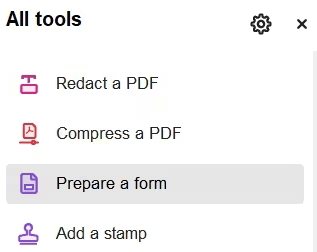
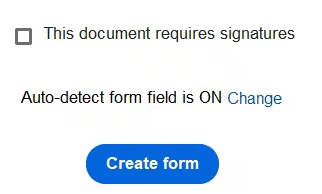
Although there is no substitution for labelling, tooltips are a nice addition. Tooltips are brief descriptive text labels that appear in a box when a user hovers their cursor over an interactive form field. They are also read aloud by screen readers to assist users with visual impairments. To create tooltips: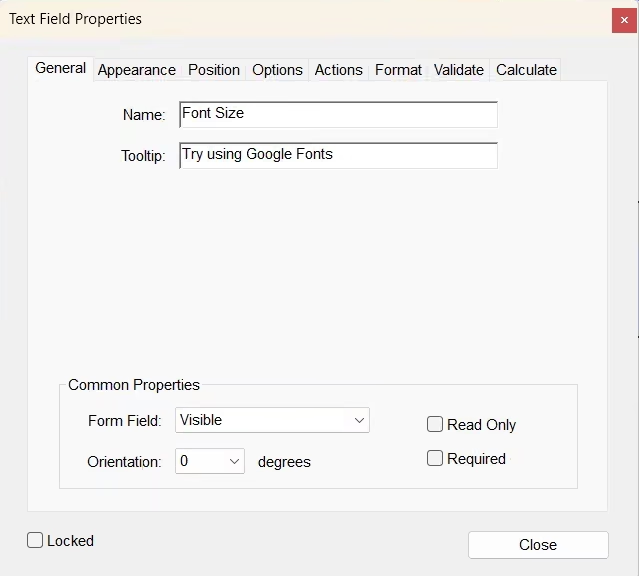
Once you have created your form, make sure it actually works.
PDF forms are a common failure point, so test them thoroughly before sharing them.
The art of creating a good PDF is making the navigation so seamless that you do not even give it a second thought, like a beautifully tailored evening outfit that looks elegant, fits perfectly and you feels so comfortable wearing it.
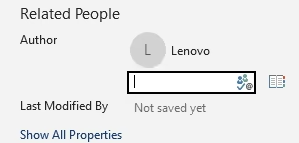
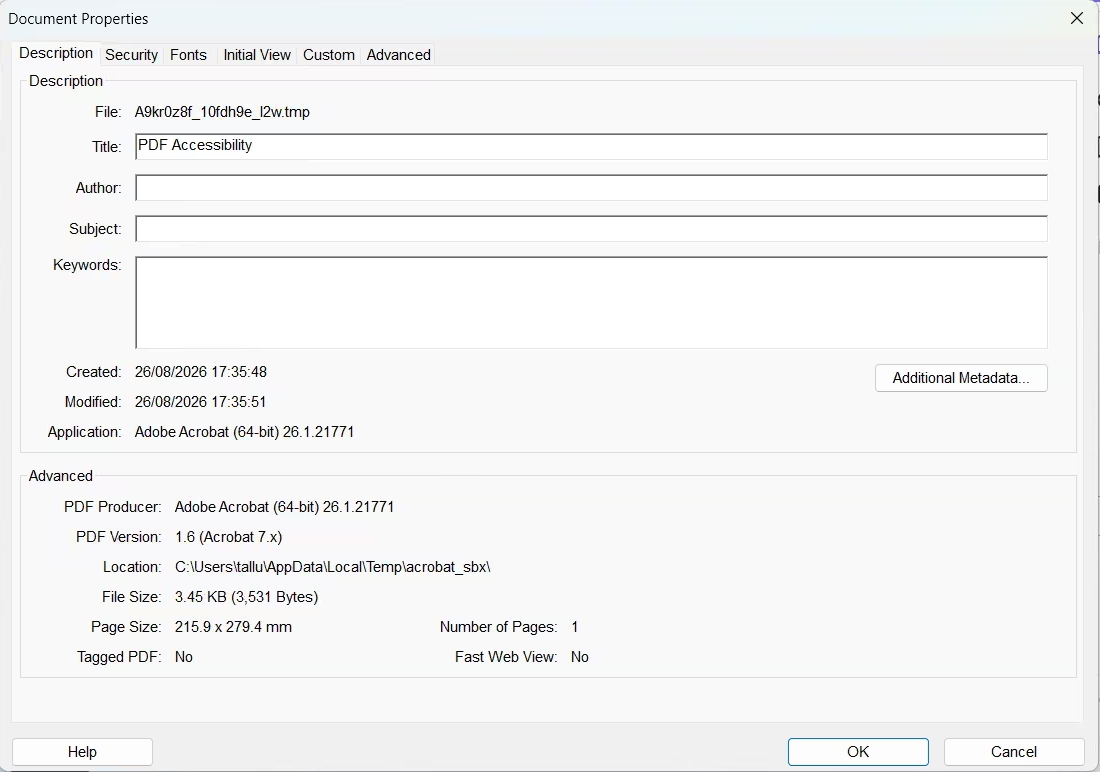
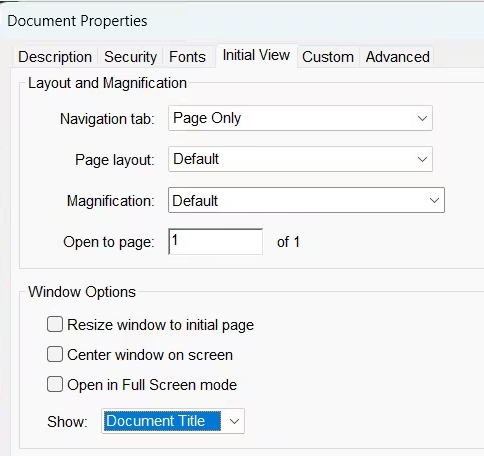
The document title is one of the first things assistive technologies, such as screen readers, encounter when opening a PDF, so it needs to be clear and meaningful. Without one, Acrobat may read the raw file name instead, such as final_draft_v3_UPDATED.pdf. It is like having a pile of shoe boxes with no size labels and having to open each one to find the right pair. A good title should tell users what the PDF is about before they start reading it.
Bookmarks allow users to jump directly to any major section with a single click or keyboard shortcut via a side panel.
When exporting to PDF from Word or InDesign, ensure you tick 'Create Bookmarks using Headings' in Options. The PDF engine will automatically convert your H1, H2, and H3 heading styles into a collapsible bookmark tree.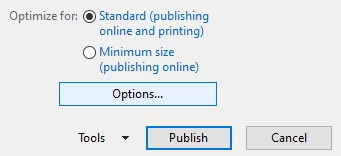
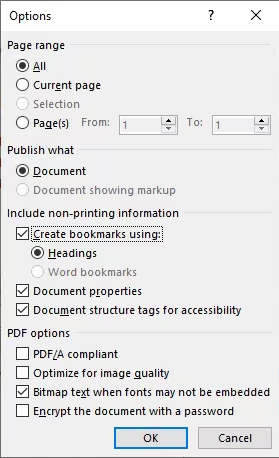
If you are in Adobe Acrobat Pro:
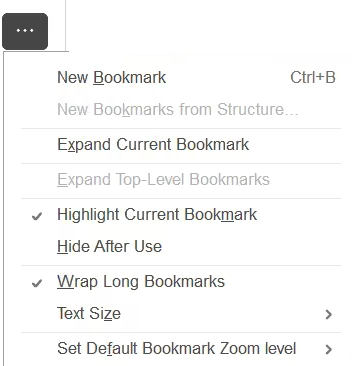
Bonus Tip: WCAG technique PDF, recommends adding bookmarks for any document over 9 pages to ensure smooth keyboard navigation.
While bookmarks live in the document sidebar, a Table of Contents is contained within the main body of the document to offer readers an immediate visual map.
Allow screen-reader users and keyboard navigators to jump straight to relevant sections without having to skim through 50 pages first. You can create a TOC using your word processor's built in generator. This ensures every entry is linked directly to its destination page.
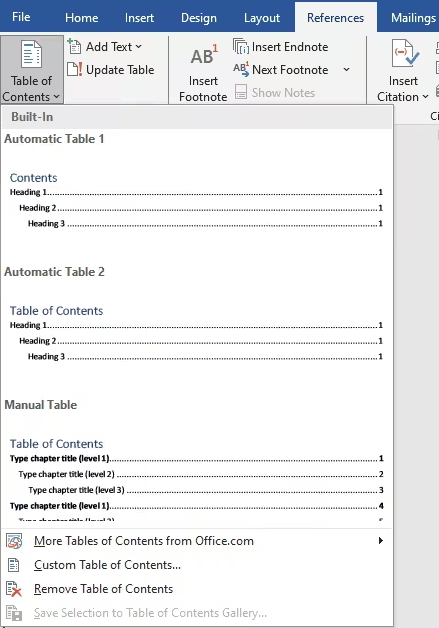
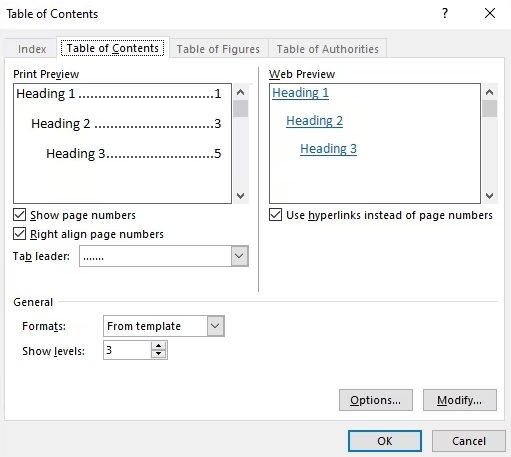
Bonus Tip: Keep tables simple by avoiding split cells, merged cells, or nested tables as screen readers need clear coordinates to read tables. Make sure your headings are descriptive so users can easily understand what each column contains.
One of the great things about PDFs is that they are security protected. Great if you want someone to enter a password before being able to print it, terrible if you are a screen reader user.
If you apply password security or restrict editing and printing, make sure those settings do not prevent assistive technologies from accessing the document text. In Adobe Acrobat Pro, open the document security settings and check the accessibility permissions.
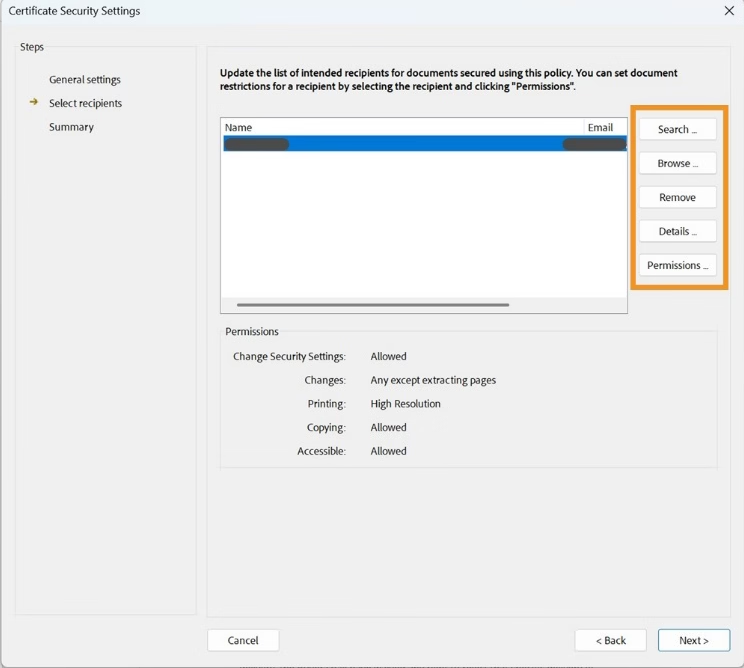
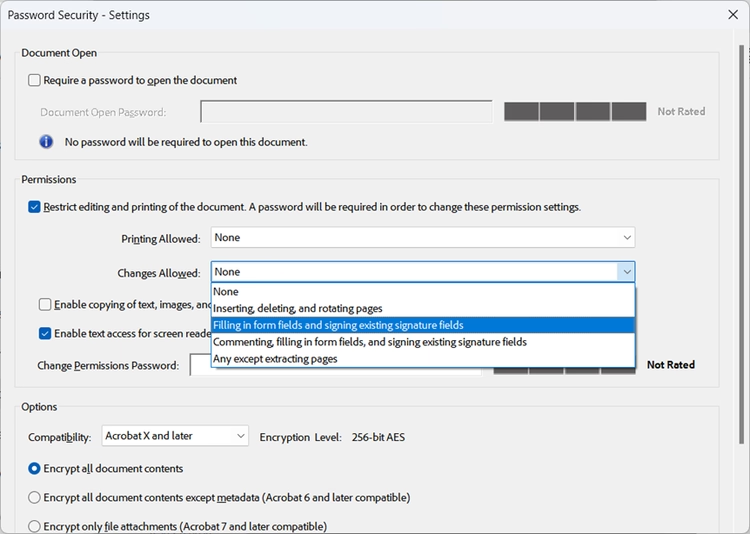
This allows assistive technologies such as screen readers to access the document text while other security restrictions remain in place.
Do not just assume that your PDFs are accessible, make sure to test your files with these essential checking tools:
Making PDFs accessible ultimately creates a better experience for everyone. Try not to think of these features as separate accessibility tools. They are simply good usability enhancements that make documents easier to read, navigate and use.
A little testing can uncover problems that automated checkers miss. Once accessibility becomes part of your normal workflow, it should not feel like extra work. It simply becomes part of creating a document that works well and helping your PDF actually live up to that promise.
Here are essential tools, guides, and testing resources to help you create fully compliant, user friendly documents:
If you found this information useful and need help. Book a Free Consultation